TV SERVER · BETA
Watch on your TV browser.
No TV app installation needed.
Your Android device becomes the server. Open your TV’s browser, pair with a code, and watch movies and series on the big screen.
Get connected ↓STEP 01
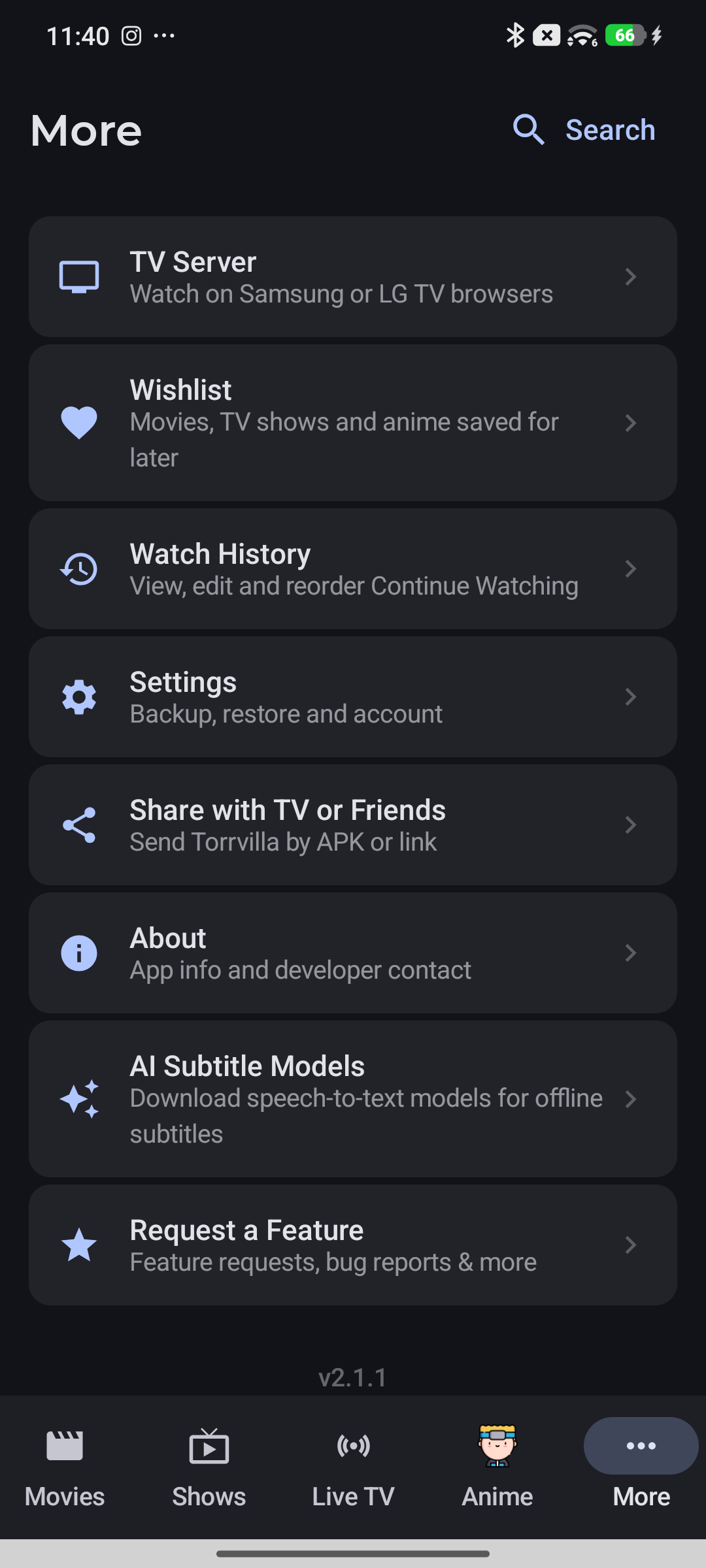
Open TV Server
In Torrvilla on Android, open More → TV Server. The Android device hosts the server; your TV needs only its browser.
STEP 02
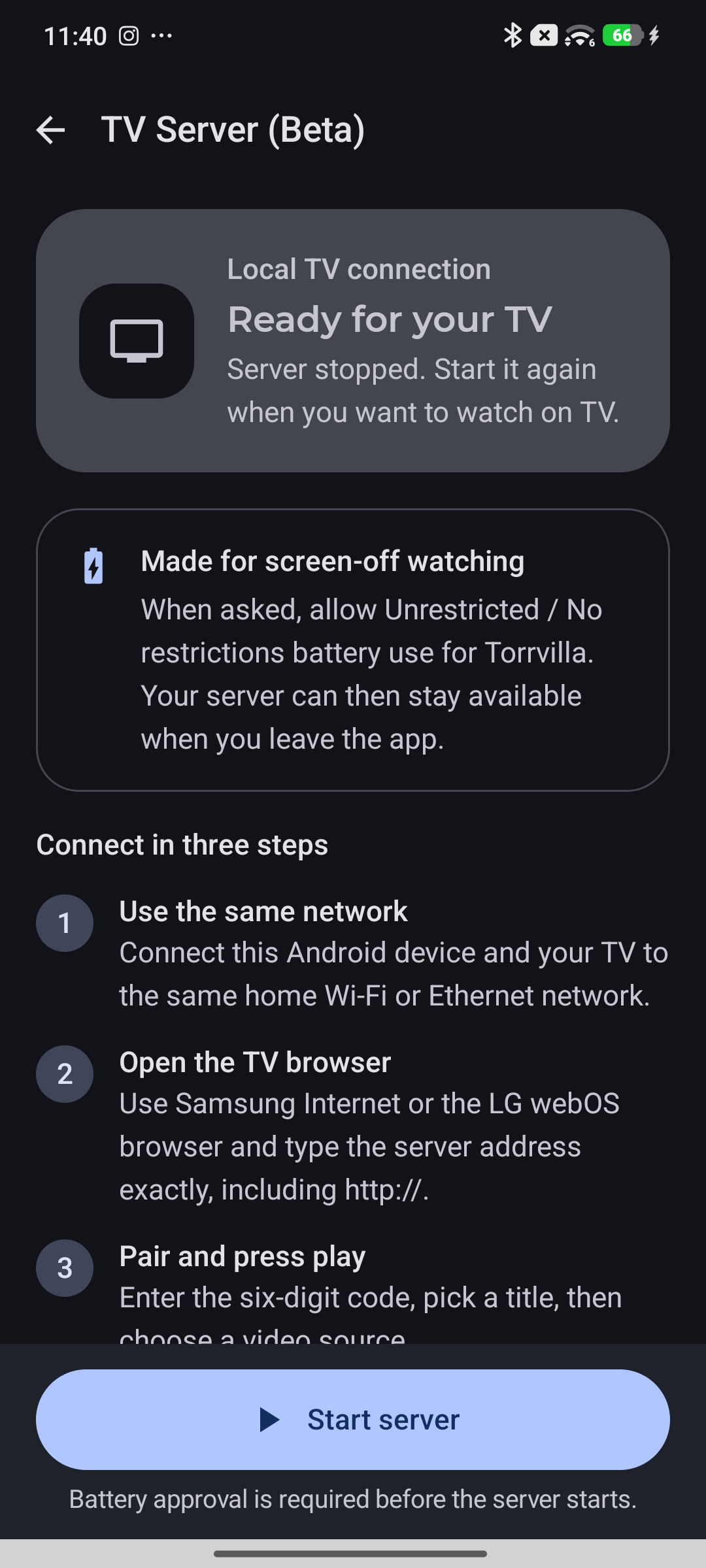
Start your server
Connect Android and your TV to the same trusted home Wi-Fi or Ethernet network. Tap Start server and allow Unrestricted / No restrictions battery use when prompted. Startup requires battery approval. Allow notifications when requested so you can access the server controls.
STEP 03
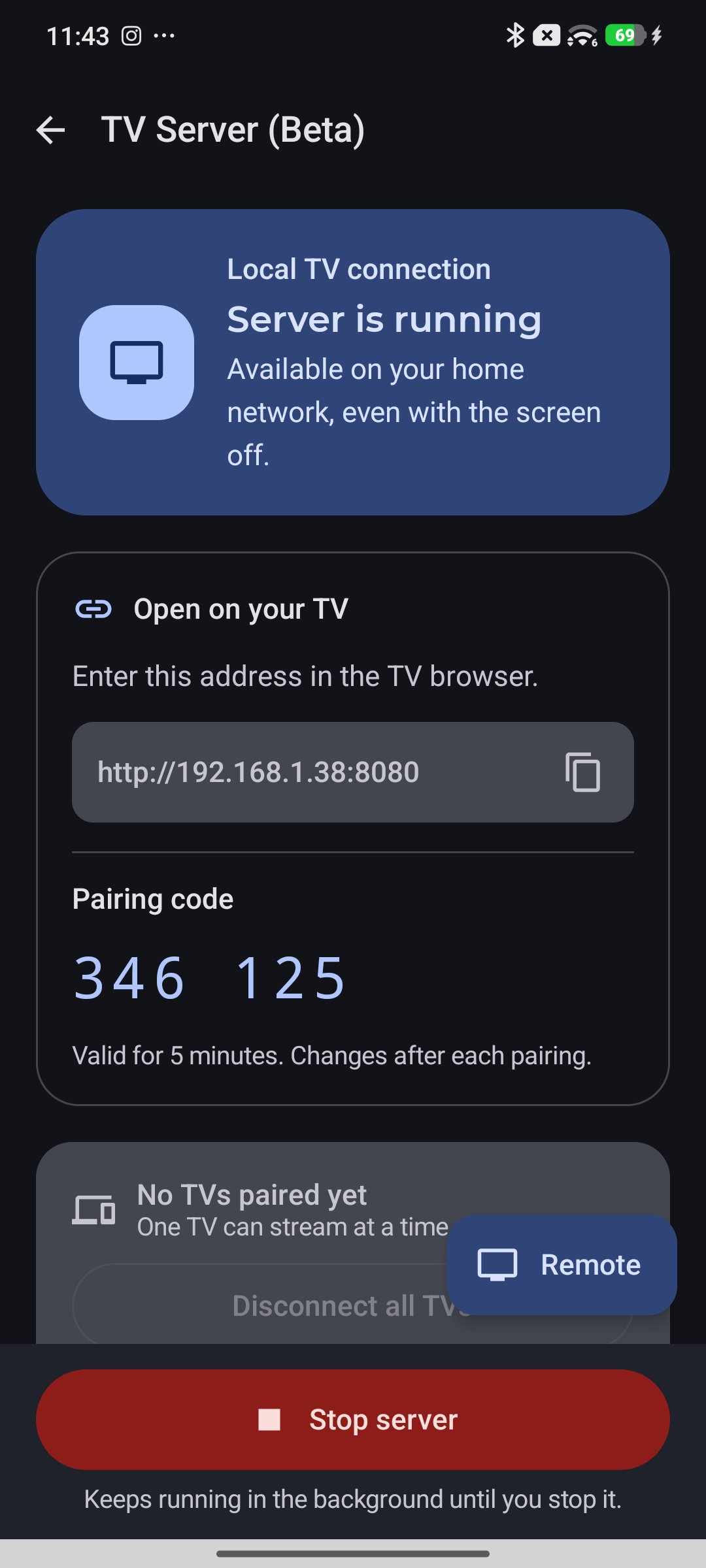
Open the address and pair
In Samsung Internet or the LG webOS browser, type the address shown on Android exactly, including http:// and :8080. Enter the current six-digit pairing code. Codes last five minutes and change after each pairing. The address and code pictured here are examples; use your own device’s current values.
STEP 04
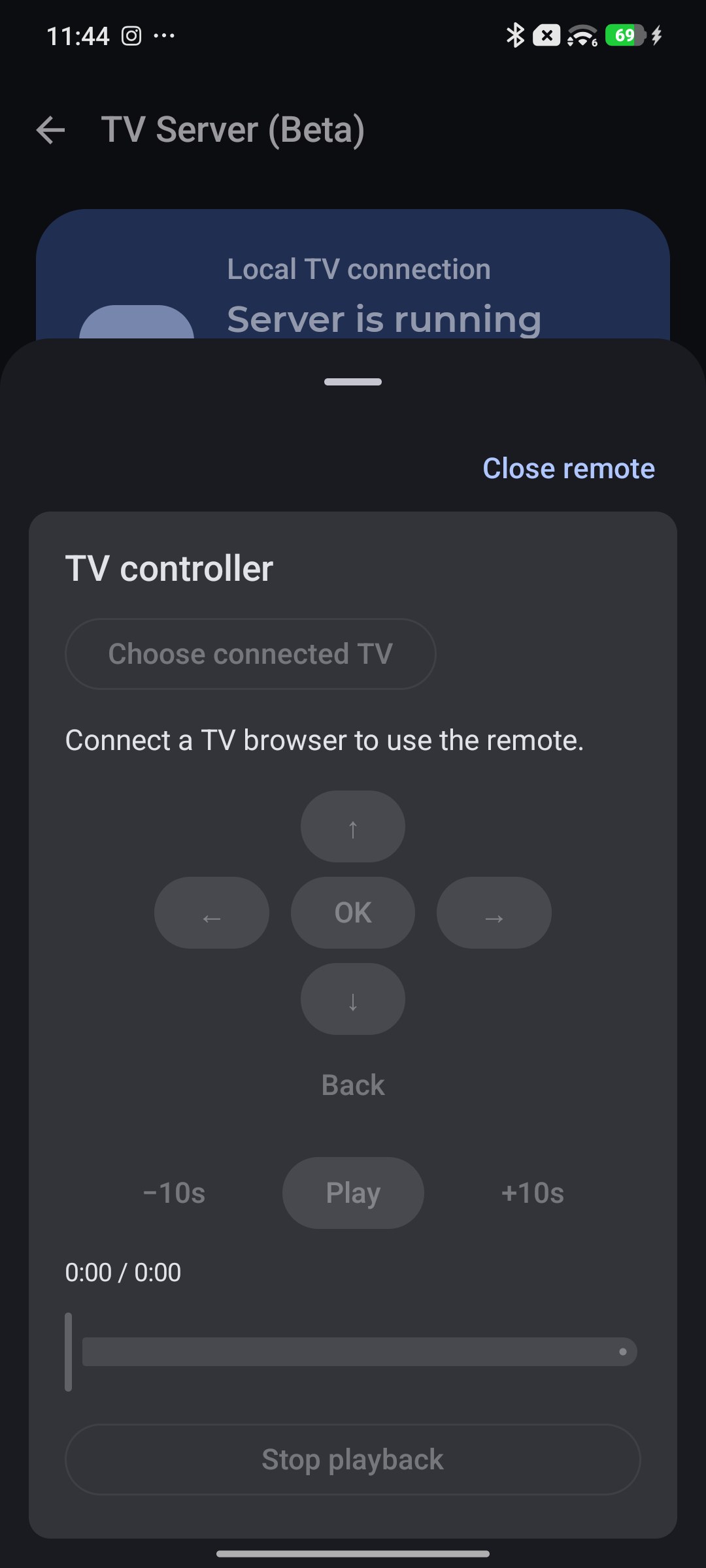
Control playback from your phone
After pairing, tap Remote on Android. The only online TV is selected automatically; choose a TV when several are connected. Use arrows, OK and Back to navigate, Play/Pause, ±10 seconds and the timeline to control video. Stop playback returns to sources without stopping the server. This screenshot shows the unpaired state: controls activate after a browser connects. The remote controls Torrvilla playback, not TV power or system volume.
Watching on desktop
For desktop, only Google Chrome is currently supported. Connect your computer and Android host to the same home network, open the server address shown in Torrvilla in Chrome, and enter the current pairing code.
Firefox requires a settings change and is not supported with its default configuration. Use Chrome for now.
Choose a title and press play
In the paired browser, choose MovieBox or AllMovieLand, browse or search, open a title and select a season and episode if needed. Choose Find sources, then select a source to play.
Use your TV remote’s arrows and OK/Enter, or its pointer. Player controls include Play/Pause, ±10 seconds, subtitle selection and full screen. Back/Escape exits full screen before leaving playback. A physical remote Play press may be needed because of browser autoplay rules.
Keep watching, then stop when finished
Keep Android powered and connected. The server is designed to remain available when you leave the app or turn off the screen; manufacturer battery restrictions can affect this. Up to four browsers can pair, but only one can stream at a time.
Stop server on Android or its notification ends serving and invalidates browser sessions. Disconnect all TVs revokes sessions and stops playback while keeping the server running. Pair again after a server restart.
Connection help
The address will not open
Check that the server is running and both devices share the same home network. Guest Wi-Fi isolation can prevent connections. Use the exact current http:// address and port shown in the app. If the address changes after reconnecting, reopen it and pair again.
The pairing code does not work
Enter the current six-digit code from Android. It expires after five minutes and changes after pairing. Enable JavaScript and cookies in the TV browser.
Playback fails or has no sound
Try another source. Videos are relayed without transcoding, so the TV must support their codecs and containers. Expired source URLs or provider errors may require finding sources again. Compatibility varies by TV; physical Samsung and LG validation remains ongoing.
The phone remote is disabled
Pair a browser first and keep it open. Choose an online TV in the controller. Browser autoplay rules can require pressing Play on the physical TV remote.
Can I share local files or watch outside home?
This release serves MovieBox and AllMovieLand content. Arbitrary local files, torrent downloading, live TV and remote internet access are outside this release. HTTP is unencrypted: use a trusted home network.